Blog

  • Is it worth learning programming in the era of AI?

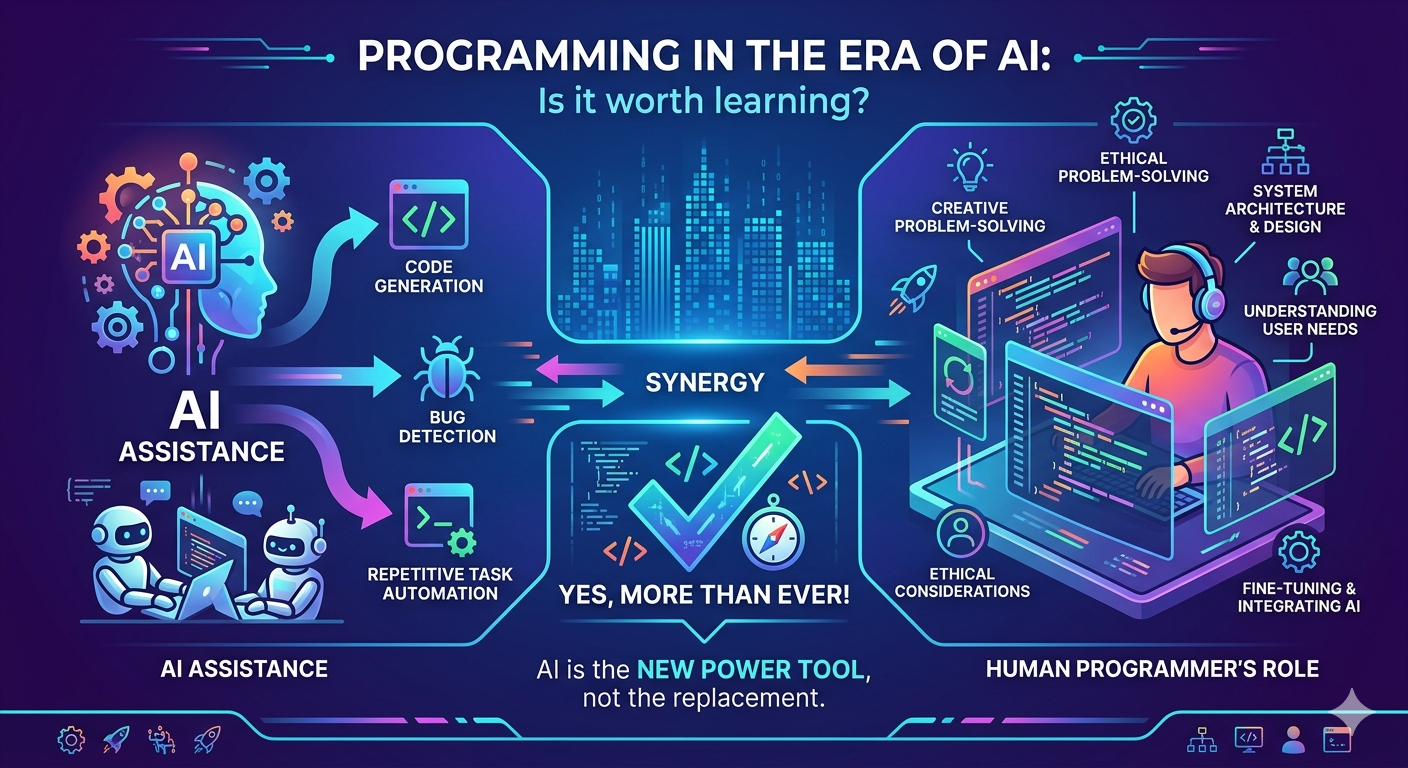
    Is it worth learning programming in the era of AI?

    Is it worth learning programming in the era of AI?
    Back to blogs
    Article

    Is it worth learning
    programming
    in the era of AI?

    A story about 11 lines of code that broke the internet — and why that proves developers matter more than ever.

    Career & AI 8 min read
    Scroll

    Real Story · 2016

    The left-pad Incident

    A developer unpublished several npm packages — including left-pad, just 11 lines of code that padded strings with spaces. Thousands of packages depended on it.

    Cascade of Failures

    left-pad
    11 lines
    Babel
    dependency
    Facebook
    build broke
    Netflix
    build broke
    Spotify
    build broke

    npm had to restore the deleted package to stabilize the entire ecosystem.

    The takeaway: Developers write code that the entire world depends on — including the code AI is trained on.

    The Questions You’re Really Asking

    🤔

    Is programming still worth learning?

    🚀

    Should you choose a different career?

    🤖

    Is AI really taking developer jobs?


    The Answer

    Is It Still Worth It?

    As of today

    3.6M+

    packages on npm — all written by human developers

    express
    react
    next
    tailwindcss
    +3.59M more
    AI Prompt → Code

    You ask AI:

    “Create a backend project starter in Express”

    AI generates because humans built Express.js first

    AI generates:

    const express = require(‘express’)
    const app = express()
    app.get(‘/’, (req, res) => {‘{‘}
    res.json({‘{‘} status: ‘ok’ {‘}’})
    {‘}’})
    app.listen(3000)
    The point: AI can write this because Express.js already exists. Humans built the foundation.
    🚁

    The Drone Analogy

    Did drones eliminate pilots, or did they create a whole new industry? AI doesn’t replace developers — it opens up space to innovate, learn faster, and deliver more.

    AI takes your job

    AI changes your job


    Strategy

    How to Survive as a Developer

    The job market today is tough. You can’t just build a TODO app. Companies want deep, foundational knowledge.

    What AI-generated code often contains

    🐛
    Bugs High risk
    🔓
    Security vulnerabilities Medium-high
    Performance issues Medium
    🏗️
    Structural problems Common
    The solution: Deep foundational knowledge lets you identify, fix, and prevent all of these.

    Deep Problem-Solving

    Go beyond writing code. Understand why problems exist and how to architect real solutions.

    Code Quality Review

    Review AI-generated code critically — catch bugs, optimize performance, improve structure.

    System Architecture

    Understand how large systems fit together — something AI tools still can’t fully reason about.

    Continuous Learning

    Curiosity + discipline beats natural talent. Make learning a daily habit, not a chore.


    Mindset

    How to Become a Better Programmer

    If I had an hour to solve a problem, I’d spend 55 minutes thinking about the problem and 5 minutes thinking about solutions.

    — Albert Einstein

    55 min — thinking
    5
    Problem analysis Solution
    RD

    Ryan Dahl

    Creator of Node.js & Deno

    “You can never understand everything. But you should push yourself to understand the system.”

    Example: Frontend Developer Roadmap

    Step 1 Foundation

    HTML & CSS

    Master the building blocks. Understand the document structure and how browsers render pages.

    Step 2 Core

    JavaScript — Deep

    Not just syntax — understand the interpreter, Just-In-Time compilation, the event loop, closures, and how code actually executes.

    Step 3 Frameworks

    React, Next.js, Tailwind

    Now they’ll make sense. Learn why they exist and what specific problems they solve.

    React Next.js Tailwind
    Step 4 Habit

    Build, Observe, Iterate

    Practice constantly, recognize patterns, and stay curious. Learning becomes a daily habit — not a grind.


    📊

    MIT Research

    95%

    of generative AI pilot companies are struggling or shutting down.

    Most agentic AI startups fail because their AI tools can’t produce reliable, production-grade code — the very thing skilled developers can deliver.


    Final Answer

    So… Should You Learn to Code?

    The cost of waiting

    22

    2022 — GPT launches

    “AI will do everything. I’ll wait and see.”

    25

    Today — 3 years later

    Those who started in 2022 have well-paid jobs, thriving freelance careers, or profitable SaaS products.

    What coding unlocks for you

    💼

    Career

    Well-paid developer role at a top company

    💰

    Freelance

    Work on your own terms for global clients

    🚀

    Own SaaS

    Build and launch your own profitable product

    The truth is simple.

    Learning to code isn’t just about landing a job. It’s about unlocking a superpower. Every idea in your head suddenly feels possible to build. That niche subscription service. That automation that saves businesses hours. AI becomes your sidekick, not your replacement.

    Don’t overthink it

    The perfect time
    was yesterday.

    The second-best time is today. Pick up that first line of code, build something small, and keep going.

    Start Learning Now →


  • The Ultimate Git & GitHub Guide for Beginners

    The Ultimate Git & GitHub Guide for Beginners

    The Ultimate Git & GitHub Guide for Beginners

    The Ultimate Git & GitHub
    Guide for Beginners

    Version Control 20 min read
    Introduction

    Welcome to the Ultimate Git Guide

    Welcome to the Ultimate Git Guide, your go-to resource for mastering Git, the industry-standard version control system.

    Inside, you’ll find clear explanations of Git commands with detailed flags and real-world examples. Learn not just how to use commands like git add, git commit, and git rebase, but also when and why to apply them.

    We’ve included tips for maintaining a clean commit history, resolving merge conflicts, and using Git’s reset and revert features to undo mistakes.

    Let’s get started! This guide will help you streamline your Git workflow and use Git like a pro.

    Overview

    Why Use Git?

    Git is a distributed version control system that lets you track changes, collaborate with teams, and safely experiment with your codebase — all without the fear of losing work.

    Staging Area
    Undo Mistakes
    Integrations
    Version Control
    Collaboration
    Branching
    Distributed
    Track Changes
    Industry Std

    Core Commands

    Essential Commands

    Fundamental Git commands every developer should know to efficiently manage repositories, track changes, and collaborate.

    Initialize a Git repository
    init
    git init
    Creates a new Git repository in the current directory, setting up the basic files and structure needed to start tracking changes.
    Clone a repository
    clone
    git clone [repository_url]
    Creates a local copy of a remote repository, including the entire commit history and all branches.
    Add files to staging
    add
    git add [file/directory]
    Stages changes for the next commit. Use git add . to stage all changes in the current directory.
    Commit with a message
    commit
    git commit -m "[message]"
    Records staged changes in the repository history with a descriptive message explaining what changed and why.
    Pull changes
    pull
    git pull
    Fetches changes from the remote and automatically merges them into your current local branch.
    Push changes
    push
    git push
    Uploads your local commits to the remote repository, making your changes available to teammates.
    Check status
    status
    git status
    Shows staged, unstaged, and untracked files — your snapshot of what’s changed since the last commit.
    List all commits
    log
    git log
    Displays the full commit history: author, timestamp, and message for every commit in the repository.
    Check difference
    diff
    git diff
    Shows line-by-line differences between your working directory and the staging area or last commit.
    Reset changes
    reset
    git reset [file]
    Removes the specified file from staging without deleting your actual changes in the working directory.
    Revert changes
    revert
    git revert [commit]
    Creates a new commit that undoes the changes from the specified commit — without rewriting or deleting history.

    Expert Commands

    Advanced Commands

    Power-user commands for complex workflows, history rewriting, and repository management.

    Stash stash
    git stash
    Saves uncommitted changes temporarily so you can switch context without losing work.
    Cherry Pick cherry-pick
    git cherry-pick [commit]
    Applies a specific commit from another branch onto your current branch without merging everything.
    Blame blame
    git blame [file]
    Shows who last modified each line of a file and when — perfect for tracking down when a change was introduced.
    Reflog reflog
    git reflog
    Logs all reference changes — your safety net for recovering lost commits or undoing a bad reset.
    Bisect bisect
    git bisect
    Binary-searches your commit history to pinpoint exactly which commit introduced a bug.
    Rebase (Interactive) rebase
    git rebase -i [commit]
    Interactively reorder, edit, or squash commits before sharing — essential for a clean history.
    Merge Squash merge
    git merge --squash [branch]
    Merges all branch commits into a single commit — ideal for keeping a clean, readable project history.
    Worktree worktree
    git worktree add [path] [branch]
    Work on multiple branches at once in separate directories — no stashing required.

    Efficiency Tips

    Git Tips That You Might Find Helpful

    Use Git Hooks

    Scripts Git runs automatically before or after events like commits or pushes — ideal for tests, linting, and code style enforcement.

    Learn Git Internals

    Understanding how Git stores data as objects and references helps you troubleshoot complex situations and reason about your repository.

    Use Git Aliases

    Create custom shortcuts — alias git stgit status, or git cogit checkout for instant speed gains.

    Use Git Configurations

    Configure auto-rebase on pull, set your preferred editor, or define default branch names globally via .gitconfig.


    Understanding Flags

    What Are Flags in Git?

    Flags modify how Git commands behave. Short flags use -, long flags use --.

    Customization

    Tailor commands to your workflow

    Efficiency

    Combine flags to save steps

    Control

    Precise control over operations

    Useful Git Flags

    Flag
    Command & Description
    -m
    git commit -m “Your commit message”

    Provide a commit message inline, skipping the editor entirely.

    -u
    git add -u

    Stage only tracked files — untracked files are ignored.

    –amend
    git commit –amend -m “Updated”

    Modify the most recent commit — add changes or rewrite the message.

    –oneline
    git log –oneline

    Compact one-line-per-commit log output for quick scanning.

    –graph
    git log –graph –oneline

    Visualizes branch topology as an ASCII graph alongside the log.

    -b
    git checkout -b [branch-name]

    Create and immediately switch to a new branch in one command.

    –no-ff
    git merge –no-ff feature-branch

    Force a merge commit even when fast-forward is possible — preserves branch history.

    –rebase
    git pull –rebase

    Reapply local commits on top of fetched changes for a linear history.

    –force
    git push –force

    Force-push to remote, overwriting remote history. Use with extreme caution.

    –hard
    git reset –hard HEAD~1

    Discard all staged and unstaged changes. This cannot be undone easily.

    –soft
    git reset –soft [commit-hash]

    Move HEAD without touching staging area or working directory — keeps changes staged.

    –mixed
    git reset –mixed [commit-hash]

    Move HEAD and unstage files, but leave working directory intact. The default reset mode.

    Stash Sub-commands

    push

    Save & clear working dir

    list

    View all stashed changes

    pop

    Apply & remove latest stash

    drop

    Delete a specific stash


    Use Case Scenarios

    Real-World Use Cases

    How Git solves real problems in everyday development across teams and projects.

    01

    Collaborating on a Team Project

    Each developer works on their own branch — frontend UI or backend API. Once complete, branches are merged cleanly without overwriting each other’s work. Git tracks every change.

    git branch git merge git pull
    02

    Handling Hotfixes on a Live Site

    A critical bug surfaces post-launch. A dev branches off main, fixes it in a hotfix/ branch, then merges back into both main and development to stay in sync.

    git checkout -b hotfix/... git merge
    03

    Rolling Back a Buggy Release

    After a bad release, the team uses git revert to undo specific commits non-destructively, or git reset to roll back to a known-good state.

    git revert git reset git log
    04

    Experimenting with New Features

    Create a feature/new-auth-system branch to safely test ideas. The main project stays untouched. If the experiment succeeds, merge it in. If not, delete the branch.

    git checkout -b feature/... git merge
    05

    Maintaining a Clean Commit History

    Before pushing, use git rebase -i to squash several small commits into one meaningful commit — making code review and future debugging far easier.

    git rebase -i git commit --amend

    Pro Advice

    Tips to Master Git & GitHub

    1

    Start with the Basics

    Master add, commit, push, pull, and clone before anything else. They power 90% of daily Git work.

    2

    Understand Branching

    Practice creating, switching, and merging branches regularly. It’s the safest way to experiment without breaking your main codebase.

    3

    Commit Often and Meaningfully

    Small, focused commits with clear messages make history readable, diffs reviewable, and bugs easier to trace.

    4

    Explore GitHub Features

    Learn Pull Requests, code review, and issue tracking. GitHub’s collaboration layer is where teams ship better software together.

    5

    Use .gitignore Properly

    Exclude node_modules, build artifacts, and environment files from tracking. Keep your repo focused and clean.

    6

    Get Comfortable with Undoing

    Don’t fear mistakes — reset, revert, and reflog are your safety net. Practice them until they feel natural.

    7

    Use Branches for Everything

    Every feature, bug fix, or experiment gets its own branch. This keeps main stable and deployable at all times.


    Naming Conventions

    Branch Naming Best Practices

    Consistent, meaningful branch names improve collaboration and make it easier to navigate project history.

    Use Consistent Naming Conventions

    Prefix branches with their type, followed by a short kebab-case description.

    feature/user-authentication bugfix/navbar-alignment hotfix/critical-payment-bug

    Lowercase Letters and Hyphens Only

    Avoid spaces, uppercase, or underscores — hyphens are universally readable.

    feature/new-ui-design not Feature/NewUIDesign

    Include Issue or Ticket Numbers

    If using Jira, Linear, or GitHub Issues, reference the ticket for traceability.

    feature/JIRA-1234-user-auth

    Use Team-Specific Prefixes for Large Teams

    Add a team prefix to avoid naming collisions across squads.

    backend/feature/api-endpoint frontend/feature/user-dashboard

    Congratulations on finishing the guide! 🚀

    You’ve learned the fundamentals of version control and collaboration. Mastering Git is a continuous journey — keep practicing, working with others, and exploring what Git can do. The more you use it, the more natural it becomes.

  • Authentication Flow on the Web

    Authentication Flow on the Web

    Authentication Flow on the Web

    Authentication Flow
    on the Web

    Innovisal Security & Architecture 9 min read

    At some point, most web developers reach the same stage. Login works. Signup works. Users can sign in. But something still feels wrong.

    Session end without warning. Refreshing the page logs the user out. Tokens either last forever or expire too quickly. Security feels confusing and hard to reason about.

    That’s usually when it becomes clear that authentication is more than a form and an API call. It’s a complete flow. Understanding it is one of the most important things you can learn.

    What Authentication Really Means

    Authentication answers a single question: “Who are you?”

    It does not answer what you are allowed to do, what data you can access, or what role you have. Those come later and fall under authorization. On the web, authentication is about proving identity across many requests, not just one. This is necessary because HTTP does not remember anything. Each request is treated as new. So the real problem authentication solves is:

    How does the server know this is the same user every time?

    The Big Picture Flow

    Almost every authentication system follows the same basic pattern. The user sends credentials. The server checks them. If they are valid, the server creates proof that the user is authenticated. The client stores that proof and sends it with every future request.

    CLIENT SERVER 👤 🖥️ Email + Password ① Send credentials Hash & compare ② Verify identity Sign token / session ③ Return proof Store in cookie ④ Store proof ⑤ Every request + proof Verify & allow/deny

    High-level authentication sequence — client ↔ server

    The Six Steps, Explained

    1

    Send Credentials

    User enters email + password. Passwords are never compared as plain text — the server hashes the input and compares against the stored hash.

    2

    Server Verifies Identity

    If credentials match, the server trusts the user for this single request. Every subsequent request still needs proof.

    3

    Create Proof of Identity

    The server creates a session record (stored server-side, ID sent via cookie) or a signed JWT (stateless, sent to client). Many modern systems combine both with a refresh token.

    4

    Store the Proof

    Tokens can live in memory, localStorage, or cookies. Safest: HttpOnly cookies — inaccessible to JavaScript, auto-sent with requests.

    5

    Send Proof with Every Request

    Cookies are sent automatically. JWTs go in an Authorization: Bearer <token> header. The server does not remember — it only trusts what arrives.

    6

    Verify on Every Request

    Check the session or token, confirm it hasn’t expired, identify the user, then allow or deny. Authentication is not a one-time event.

    Token Expiry & Refresh

    This is where many beginner setups fall apart. When a user logs in, the server gives them a token — a temporary proof of identity. But tokens aren’t meant to last forever.

    If a token gets stolen and never expires, an attacker could use it indefinitely. By making tokens expire quickly, the system limits potential damage. The downside: users get logged out repeatedly, making the app feel broken.

    The solution: two tokens that work together.

    Access Token
    • Short-lived (minutes)
    • Sent with every API call
    • Reduces risk if stolen
    • Stored in memory or cookie
    Refresh Token
    • Long-lived (days or weeks)
    • Used only to get a new access token
    • Stored securely (HttpOnly cookie)
    • Invalidated on logout
    Client Access token expired Server New access token issued Refresh token sent instead Access expired → send refresh → receive new access token (silently)

    Token refresh flow — happens silently in the background

    When implemented correctly, this entire process happens silently. Users stay logged in for long periods without noticing. When implemented poorly, users experience random logouts, failed requests, or constant authentication prompts.


    Logout Is Also Authentication

    Logging out is not just clearing client-side data. A proper logout must invalidate the session or refresh token server-side, remove all client-side data, and prevent reuse. If a token still works after logout, the flow is incomplete.

    Common Mistakes

    • Storing sensitive tokens in unsafe places (e.g. localStorage for JWTs)
    • Never expiring access tokens
    • Mixing authentication with authorization logic
    • Trusting client-side checks instead of server-side verification
    • Ignoring refresh token failures silently
    • Forgetting CSRF protection on cookie-based flows

    Authentication Is Infrastructure

    Login forms are simple. Authentication flows are infrastructure. They affect security, user experience, scaling, and trust. Once you understand the full flow, problems become easier to diagnose. Logs make more sense. Edge cases feel manageable.

    Authentication isn’t complicated because it’s clever. It’s complicated because it has to work across requests, tabs, devices, and networks — all while defending against attacks and keeping the user experience smooth.

    Once you understand the flow, you stop copying examples and start making informed decisions. That is the shift from beginner to intermediate.